July 12, 2026
How to Connect Bluesky on PostStage
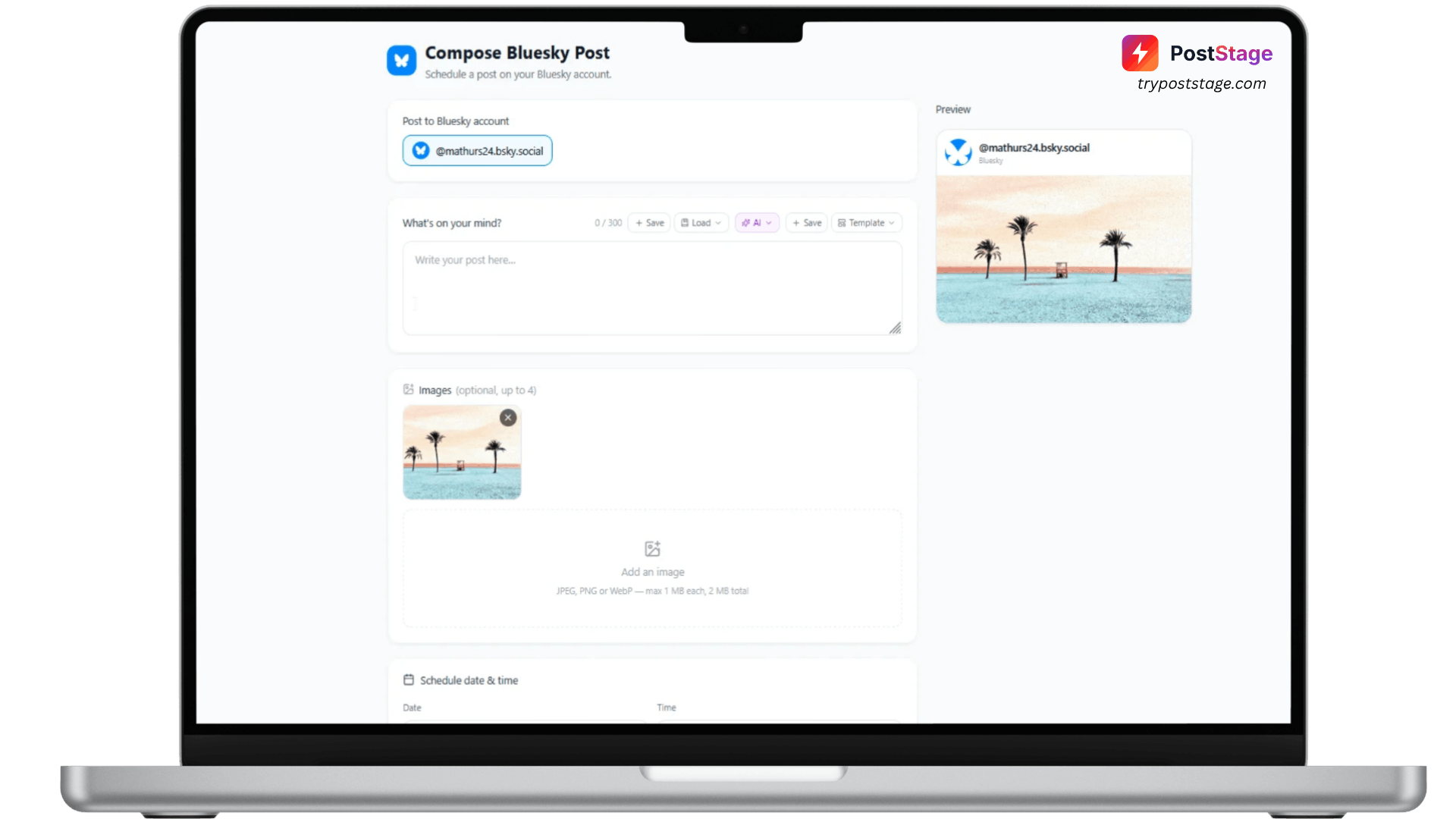
Bluesky is the one platform on PostStage that doesn't use a standard "log in and approve" OAuth flow. Instead, you generate a dedicated App Password inside Bluesky and paste it into PostStage — it takes about a minute.
Step 1: Generate an App Password
- Open bsky.app and log in.
- Go to Settings → Privacy and Security → App Passwords.
- Click Add App Password, name it anything (e.g. "PostStage"), and click Create.
- Copy the password Bluesky shows you — it's only shown once, so don't navigate away before copying it.
Step 2: Go to Accounts in PostStage
In your PostStage dashboard, open Accounts from the sidebar, then click the Bluesky tile. This opens a "Connect Bluesky" form rather than redirecting you anywhere.
Step 3: Enter your handle and App Password
Fill in:
- Handle — your Bluesky handle, e.g. yourname.bsky.social
- App Password — the password you copied in Step 1
Step 4: Click Connect
That's it — your account is linked.
Why an App Password, not your real password?
This isn't your main Bluesky password — it's a separate, posting-only credential. You can revoke it any time from the same Bluesky settings page without affecting your main login.
Troubleshooting
If the connection fails, double-check you copied the App Password exactly (not your regular account password) and that your handle is typed correctly, including the .bsky.social suffix if you haven't set up a custom domain handle.