August 18, 2026
How to connect Canva to PostStage
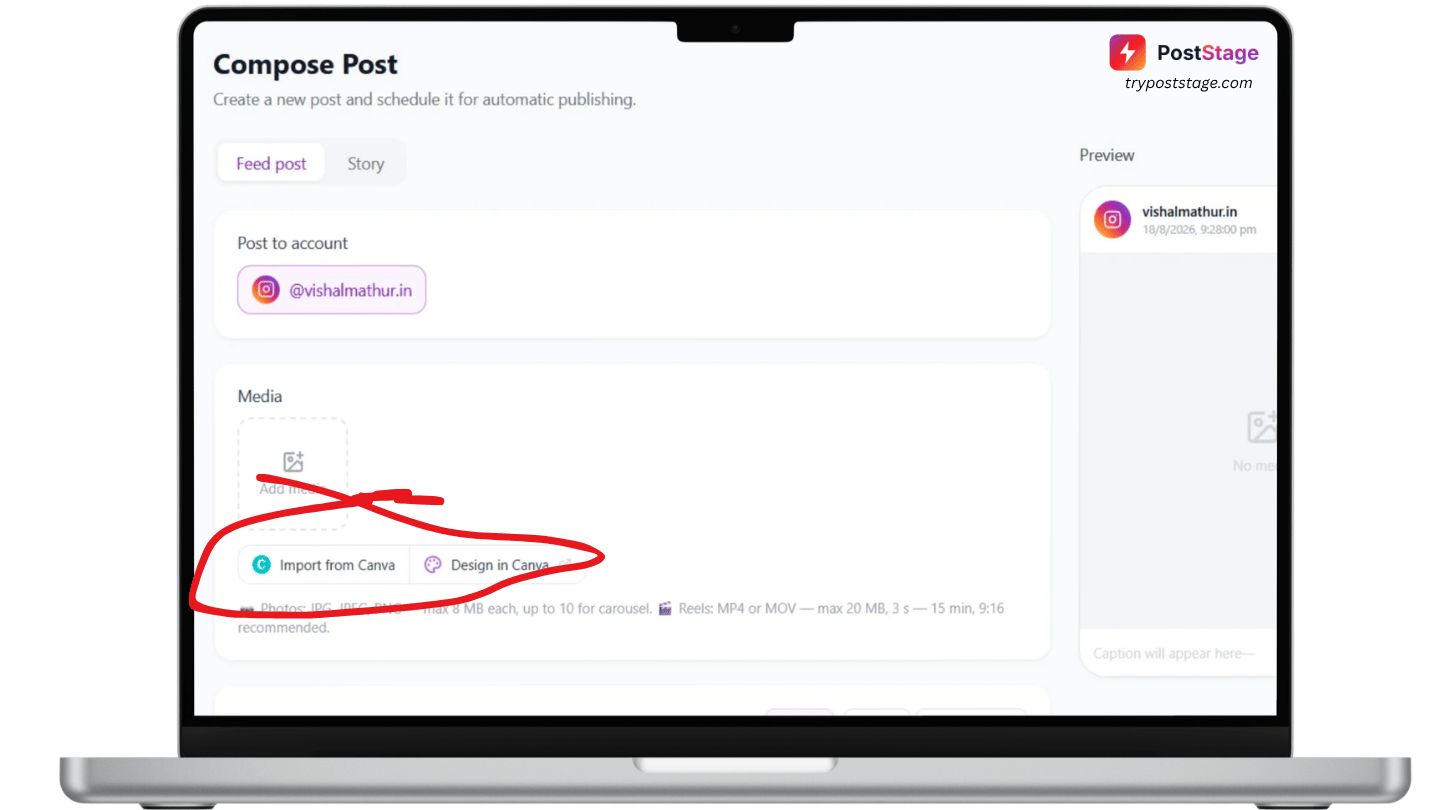
Canva is where a lot of social content actually gets made — and until now, using it with a scheduler meant exporting a file, finding it in your downloads, and uploading it again. PostStage connects to Canva directly, so your designs come straight into a post.
Canva import is included on all paid plans. If you're on the Free plan you'll see the Canva card on your Accounts page with an upgrade prompt rather than a Connect button.
Unlike the fourteen social networks PostStage publishes to, Canva is a content source — nothing is ever posted to Canva. It's where your artwork comes from, and it doesn't count against your channel limit.
Step 1: Connect your Canva account
In your PostStage dashboard, open Accounts from the sidebar and scroll to Content sources. Click the Canva tile.
You'll be taken to Canva's own consent screen, which lists exactly what PostStage is asking for: read your designs, export them, create a new design, read your folders, and see which account you're connected as. Approve it and you'll land back on your Accounts page with Canva showing as Connected.
Nothing is uploaded to Canva and nothing in your Canva account is modified, apart from blank designs you explicitly create from PostStage.
Step 2: Import a design you've already made
Open any composer — Compose in the sidebar — and look for Import from Canva in the media row.
The picker shows your most recently edited designs, with a search box. Click a design and it's imported at the right size and quality for whichever platform you're posting to, then attached to your post like any uploaded file.
Multi-page designs. If a design has more than one page, clicking it opens a page chooser with thumbnails. Pick the page you want — slide 3 of a six-page deck is one click, not an export-and-crop job.
Building a carousel. On Instagram, Bluesky and Mastodon you can tick several images before importing, and they arrive in the order you ticked them. That's the carousel order. The picker tells you how many slots are left, so you can't overshoot the platform's limit by accident.
Team folders. Your Canva folders appear above your designs. Open one to reach designs owned by your team rather than by you personally — those don't appear in the main list, because Canva only returns designs you own or that are shared with you individually.
Step 3: Design something new without leaving your post
Next to Import you'll find Design in Canva. This creates a blank Canva canvas already sized for the platform you're posting to — 1080×1920 for a Reel, square for a feed post — and opens it in the Canva editor.
Design it, then click Return in Canva. You'll come back to PostStage with the design attached and ready to schedule.
One thing worth knowing before you click it: this leaves the page, so anything you've already typed into the composer isn't kept. If you've written a caption you want, save it as a draft first. PostStage warns you about this before it navigates.
Troubleshooting
"Canva won't let us export that design" — you can see the design but it isn't shared with your Canva account directly, which is what exporting needs. This usually happens with designs owned by a team. Open it in Canva, choose Make a copy, and import the copy — it belongs to you, so it exports fine. Or ask whoever owns it to share it with you.
A page shows "no preview" — Canva only renders thumbnails for pages that have content on them. Blank pages show no preview but still import normally.
Importing feels slow — Canva exports asynchronously, so PostStage waits for the export job to finish, downloads the file, and re-hosts it. Ten to thirty seconds is normal, and longer for a large or multi-page design. Keep the window open while it works.
Team folders aren't showing — folder access was added after the initial release. Go to Accounts → Content sources → Reconnect to re-approve, since an existing connection doesn't gain new permissions on its own.
A square design going to Reels — it'll publish, but vertical formats will show bars down the sides, and YouTube won't count a square video as a Short. Design at the right size, or use Design in Canva, which picks the size for you.
What gets stored
An imported design is copied into PostStage's storage so your post still has its image after Canva's own export links expire. It's kept for as long as your post history is, and counts towards your monthly upload allowance only once it's actually attached to a post — browsing designs in the picker costs you nothing.
You can disconnect Canva at any time from Accounts → Content sources, which revokes PostStage's access on Canva's side too.