July 12, 2026
How to Connect Discord on PostStage
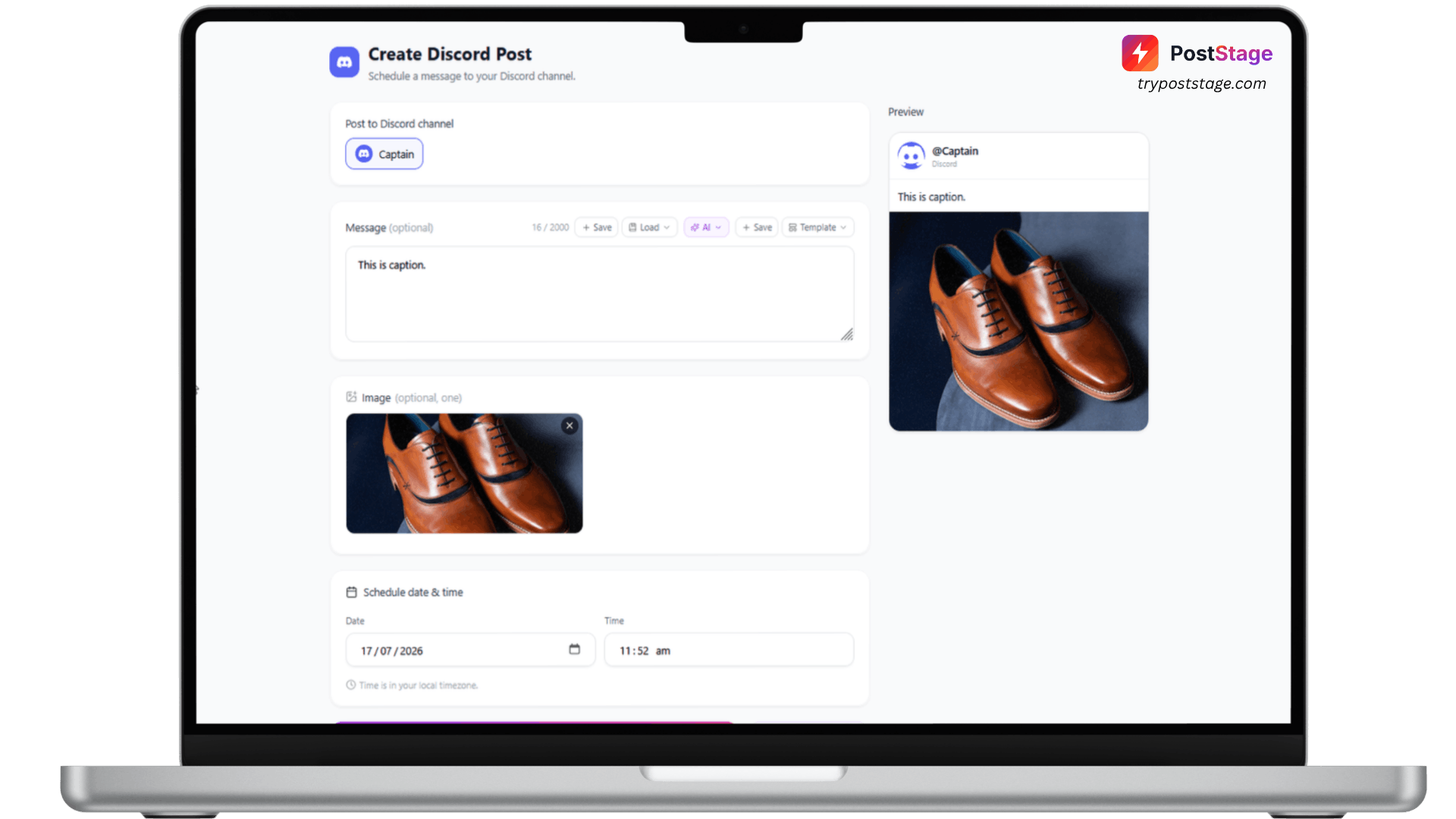
Discord is the simplest non-OAuth connection on PostStage — no bot, no Developer Portal app, just a webhook URL you create directly inside your server settings.
Step 1: Create a webhook in Discord
- Open your Discord server → Server Settings → Integrations → Webhooks.
- Click New Webhook and pick the channel you want PostStage to post to.
- Click Copy Webhook URL.
Step 2: Go to Accounts in PostStage
In your PostStage dashboard, open Accounts from the sidebar, then click the Discord tile. This opens a "Connect Discord" form.
Step 3: Paste the webhook URL
Paste the URL you copied — it should look like https://discord.com/api/webhooks/... Your webhook URL is stored encrypted and used only to post on your schedule.
Step 4: Connect
That's it — the webhook is already bound to the one channel you picked in Discord, so there's no separate channel picker in PostStage.
Troubleshooting
"That doesn't look like a Discord webhook URL" — double-check you copied the full URL from Discord, starting with https://discord.com/api/webhooks/.
"This webhook doesn't exist or was deleted in Discord" — someone removed the webhook from Discord's side. Create a new one following Step 1 and reconnect.
You're now ready to schedule posts to your Discord channel.