July 12, 2026
How to Connect Google Business Profile on PostStage
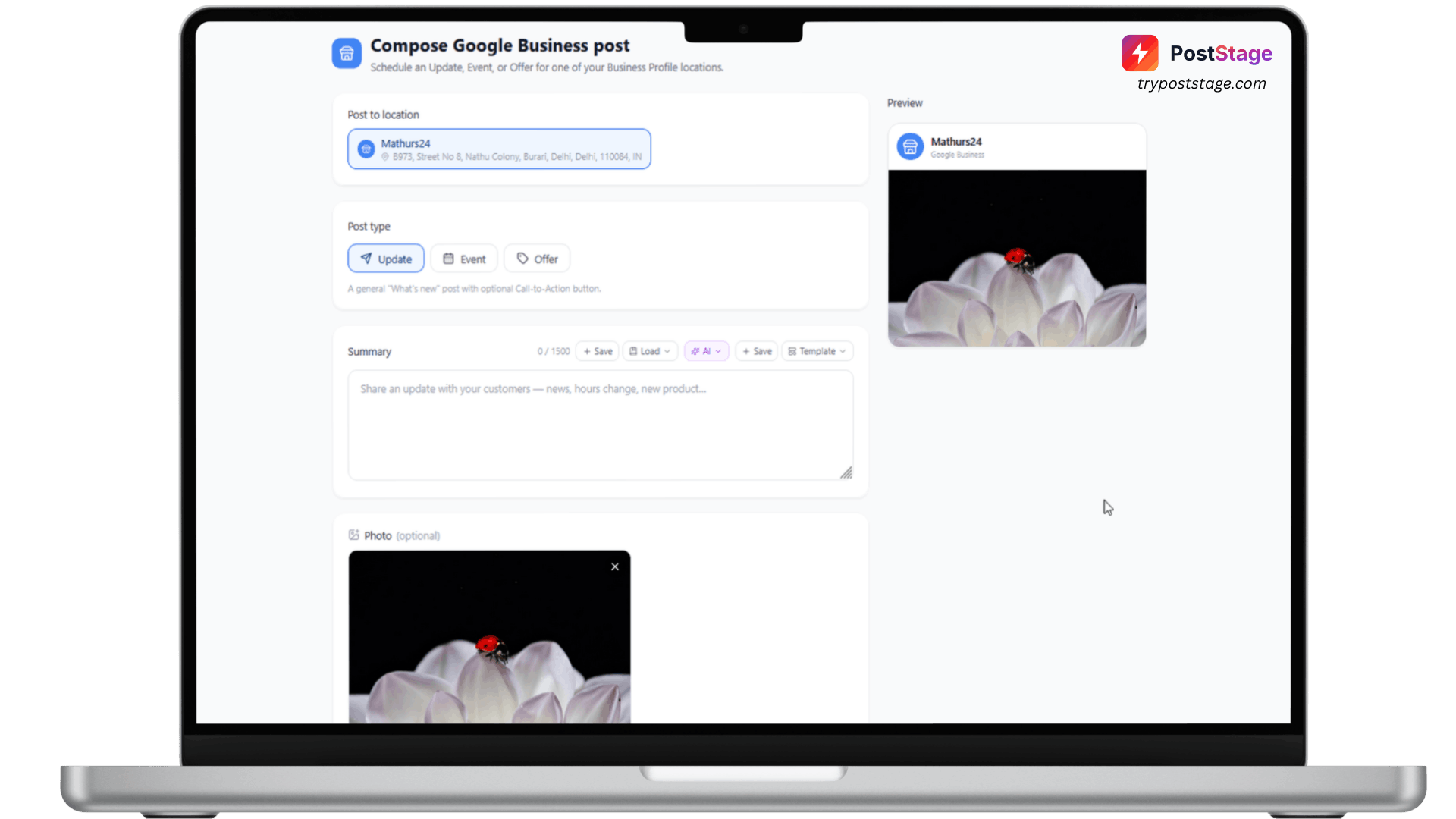
Google Business Profile (labeled "Google Business" in the connect grid) has a slightly different connect flow from other platforms: instead of picking one location, PostStage connects all of them at once.
Before you start
You'll need admin access to at least one verified Google Business Profile location. If your business listing hasn't been verified with Google yet, connecting won't find anything to link.
Step 1: Go to Accounts
In your PostStage dashboard, open Accounts from the sidebar.
Step 2: Click the Google Business tile
Click the Google Business tile in the connect-account grid.
Step 3: Log in and approve access
Log in with the Google account that manages your business listing(s), and approve the requested permissions.
Step 4: Confirm it's connected
You'll be redirected back to PostStage. There's no manual picker — every verified location your Google account administers is connected automatically, each showing up as its own separate account in your Accounts list. If you manage several locations, you'll see a confirmation like "3 Google Business accounts were linked successfully."
Troubleshooting
"We connected to Google Business but couldn't find any business locations" — this means your Google account doesn't have admin access to a verified Business Profile location yet. Double-check you're logging in with the right Google account, and that your listing has actually completed Google's verification process, then try again.
If you manage a large portfolio and hit your plan's account limit partway through, PostStage connects as many locations as your plan allows and skips the rest — upgrade your plan if you need more connected at once.
That's it — your locations are ready to receive scheduled posts.