July 12, 2026
How to Connect Mastodon on PostStage
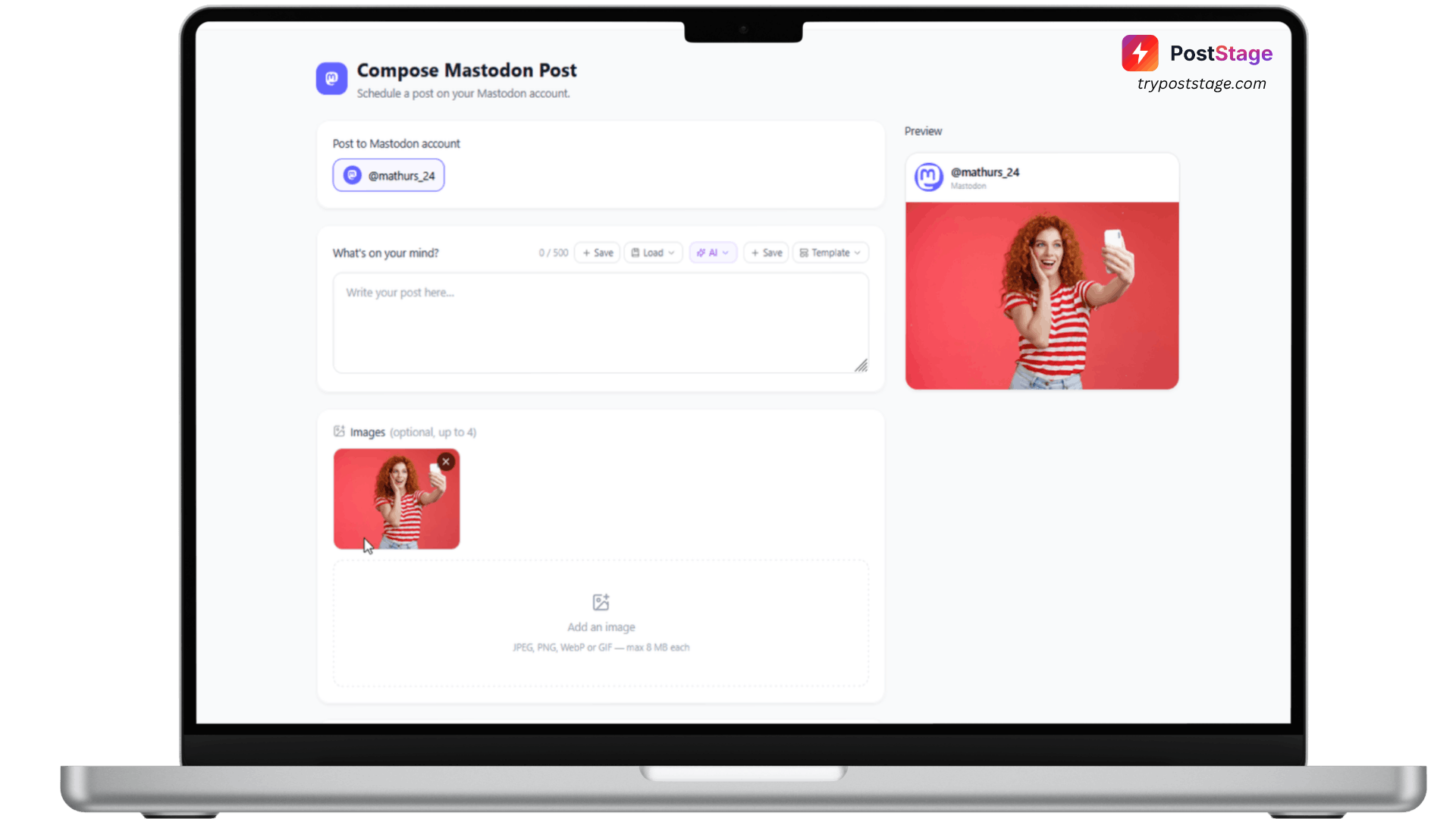
Mastodon isn't one single website — it's thousands of independently run servers ("instances") that talk to each other. Because of that, connecting starts with one extra step other platforms don't have: telling PostStage which instance your account lives on.
Step 1: Go to Accounts
In your PostStage dashboard, open Accounts from the sidebar, then click the Mastodon tile.
Step 2: Enter your instance domain
A "Connect Mastodon" form opens asking for "Your instance domain" — pre-filled with mastodon.social, the most common one. If you signed up somewhere else, change it. This is not your @handle — it's the website you log in to Mastodon on. If your profile is mastodon.social/@yourname, the instance is just mastodon.social — the part before /@.
Step 3: Click Continue
You'll be redirected to your instance to approve access, then sent back to PostStage automatically.
Step 4: Confirm it's connected
Your account connects with no further picker step.
Troubleshooting
"Enter your Mastodon instance domain" — you left the field empty; enter just the domain (e.g. mastodon.social).
"That doesn't look like a valid instance domain" — double-check you entered a plain domain, not a full profile URL or handle.
"Couldn't reach that Mastodon instance to register PostStage" — the domain may be mistyped, or that instance may be temporarily down. Double-check the domain and try again.
That's it — you're ready to schedule Mastodon posts. When it's time to reconnect (Mastodon tokens don't expire on a fixed schedule, but can be revoked from your instance's settings), PostStage remembers your instance domain automatically.