July 12, 2026
How to Connect Pinterest on PostStage
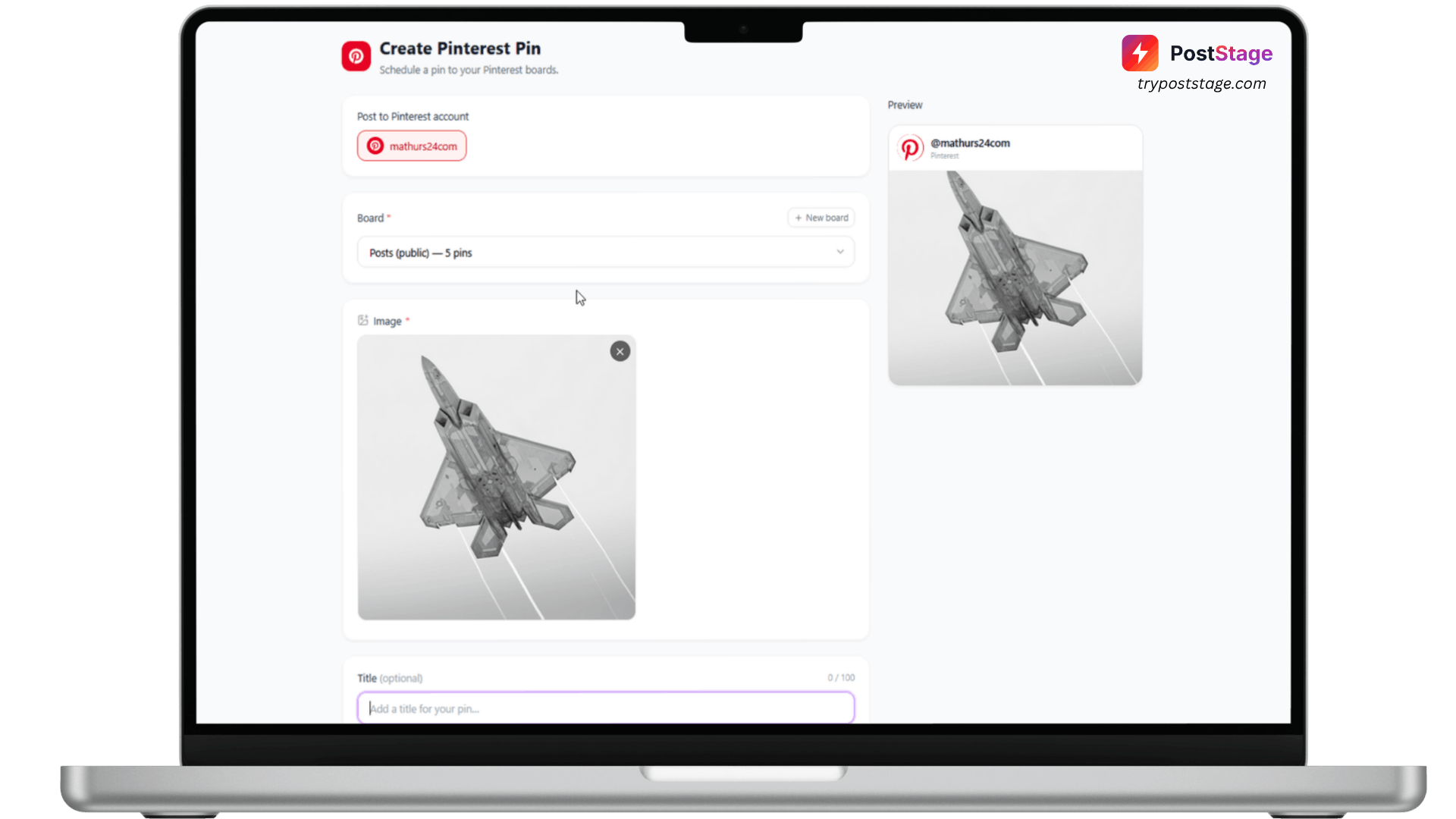
Pinterest connects to PostStage through a standard OAuth flow, and works with either a personal or business Pinterest account.
Step 1: Go to Accounts
In your PostStage dashboard, open Accounts from the sidebar.
Step 2: Click the Pinterest tile
Click the Pinterest tile in the connect-account grid.
Step 3: Log in and approve access
Log in with your Pinterest account and approve the requested permissions (reading and writing boards and Pins).
Step 4: Confirm it's connected
You'll be redirected back to PostStage with your account connected.
Choosing a board
You don't pick a board when connecting — that happens later, when you actually schedule a Pin. Open the composer, and you'll see a Board selector alongside the rest of your Pin details. Note that every Pin needs an image; Pinterest doesn't support text-only posts.
That's it — you're ready to start scheduling Pins.