July 12, 2026
How to Connect X on PostStage
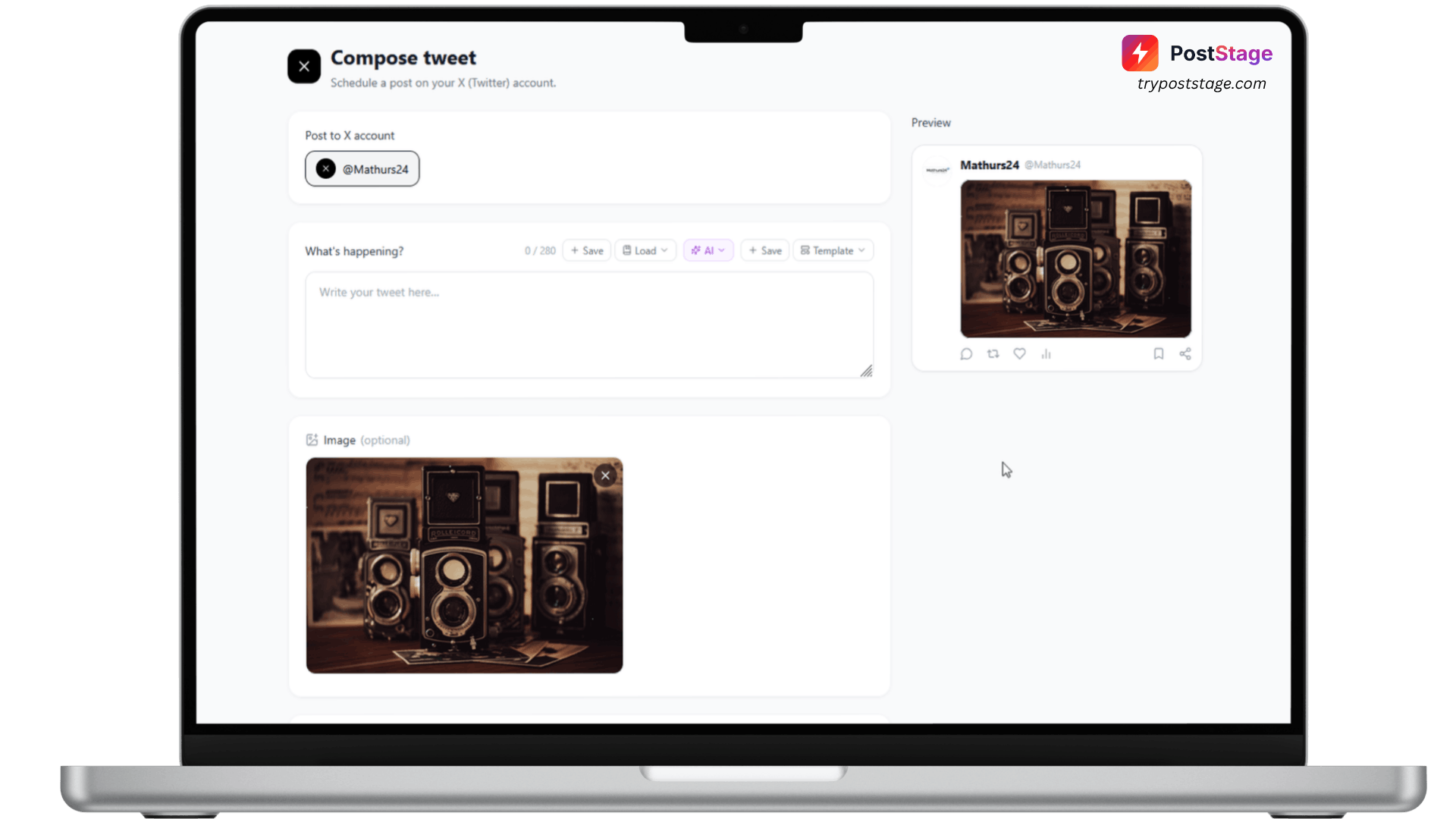
Unlike every other platform on PostStage, X (Twitter) isn't a self-serve connection — it's a paid add-on enabled per account. Here's how it works.
Before you start
X requires two things: a paid PostStage plan (Starter or above — not Free), and the X add-on enabled on your account by our team. Pricing is volume-based depending on how many tweets you plan to publish, so it's set up individually rather than bundled into a flat plan price.
Step 1: Go to Accounts
In your PostStage dashboard, open Accounts from the sidebar.
Step 2: Find the X (Twitter) tile
If the add-on isn't enabled on your account yet, you'll see an "Add-on" badge on the X (Twitter) tile. Clicking it opens your email client with a message pre-addressed to our team, subject line "Enable X / Twitter Add-on for my PostStage account."
Step 3: Send the request
Send that email (or just email info@trypoststage.com directly). We'll confirm your posting volume, price it, and enable the add-on on your account.
Step 4: Connect your account
Once enabled, the "Add-on" badge disappears and the tile becomes a normal connect button. Click it, log in with your X account, and approve access.
Step 5: Confirm it's connected
You'll be redirected back to PostStage with your account connected and ready to schedule.
That's it — reach out any time to get X enabled on your plan.