July 12, 2026
How to Connect YouTube on PostStage
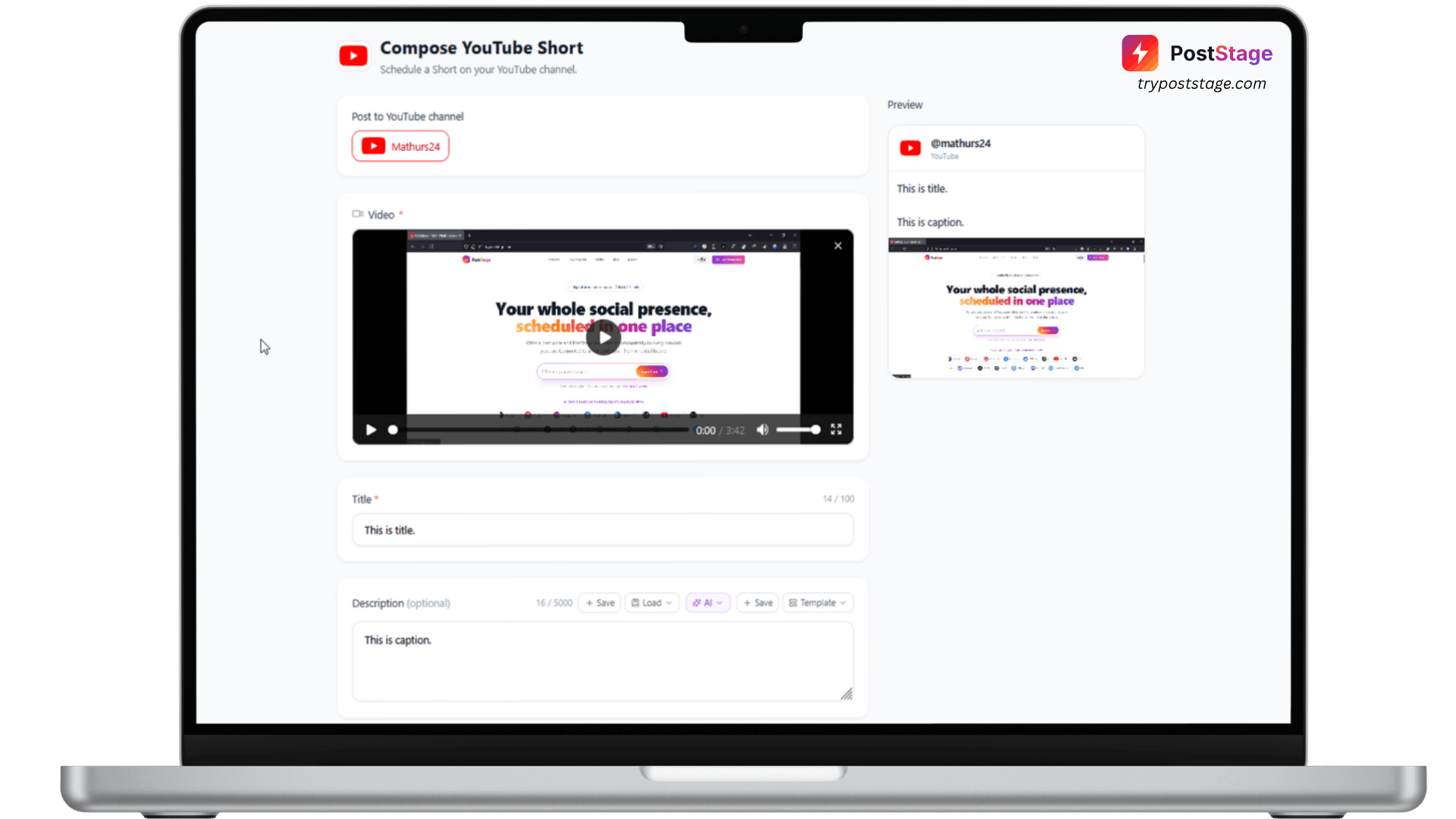
PostStage connects to YouTube to schedule Shorts — here's what you need and how to set it up.
Before you start
Your Google account needs to already have a YouTube channel on it. If you've never created one, do that at youtube.com first — Google will prompt you to create a channel the first time you try to upload or manage content.
Step 1: Go to Accounts
In your PostStage dashboard, open Accounts from the sidebar.
Step 2: Click the YouTube tile
Click the YouTube tile in the connect-account grid.
Step 3: Log in and approve access
Sign in with the Google account that owns your channel, and approve the requested permissions.
Step 4: Confirm it's connected
You'll be redirected back to PostStage with your channel connected.
What you can post
PostStage schedules YouTube Shorts only — not long-form video, not image posts. Videos must be vertical (9:16), under 60 seconds, in MP4 or MOV format, and under 500 MB. Anything meeting those specs is automatically published as a Short.
Troubleshooting
If connecting fails with a generic OAuth error, the most common cause is a Google account with no YouTube channel yet — create one and try again.
That's it — head to the composer to schedule your first Short.